Exploring Metrics
Each metric in TargetBoard can be explored across four views: Track, Analyze, Inspect, and Improve. Read to see what you can do with each.
Every metric in TargetBoard can be explored further across four views: Track, Analyze, Inspect, and Improve. These tabs help you understand trends, break down data, debug edge cases, and trigger actions.
Accessing the Metrics Page
You can access these explorations easily from a number of different avenues.
- Clicking on a metric in your catalog.
- Finding and selecting a metric from the search bar at the top of the page.
- Clicking on the title of any metric card on a board - Note that this version of the metric will already have any filters on the board or card included as you drill down, so you'll only see relevant data.
- Clicking on a segment of data from a graph, such as a specific bar in a bar graph or line in a multi-line chart. This will also include not only the board and card filters as noted above, but will only include data for the selected segment.
The 'Track' Tab
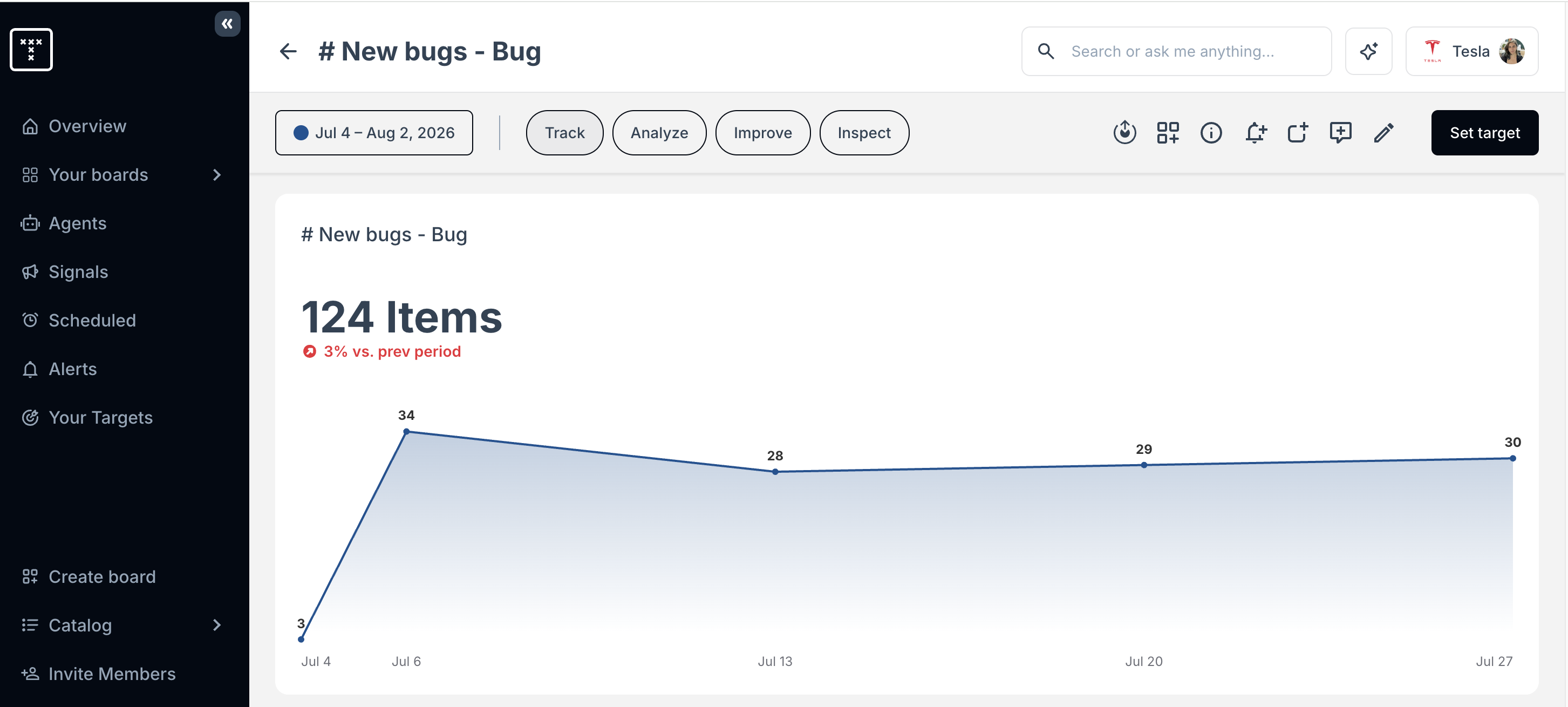
This is the default view when you click on a metric in any of the ways specified above. It shows a trend graph of the data for your most recently viewed date range.
You can change the date range at any time to expand or focus in on a new timeframe.
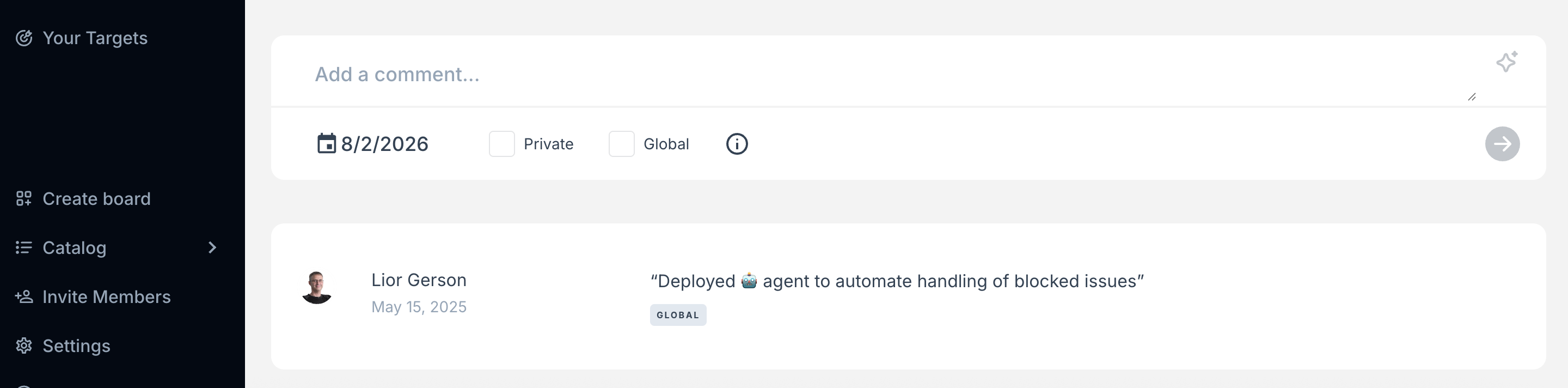
Additionally, you can add comments or annotations to provide context to changes, such as process changes, public holidays, system upgrades or anything else that might be relevant to note or track changes in relation to. These can be set to private, for your eyes only, or global, which will make them visible to all users in your workspace.
Annotations are a useful tool for understanding why a KPI spiked or dipped - especially for recurring reports.
The 'Analyze' Tab
This tab provides a pivot table, allowing you to break down the data by any dimension available to the metric being investigated. In the example below - # New Bugs - we have breakdowns like Assignee, Team, Label, Epic, Initiative, Priority etc., all of which can help shed light on what is happening in your organization.
We recommend starting an investigation here whenever you see something unusual in the data. For example, if there is a sudden influx of new bugs, using the pivot to see if they are related to a particular initiative or release can be essential to getting a full picture of what is going on and contextualizing the data fully.
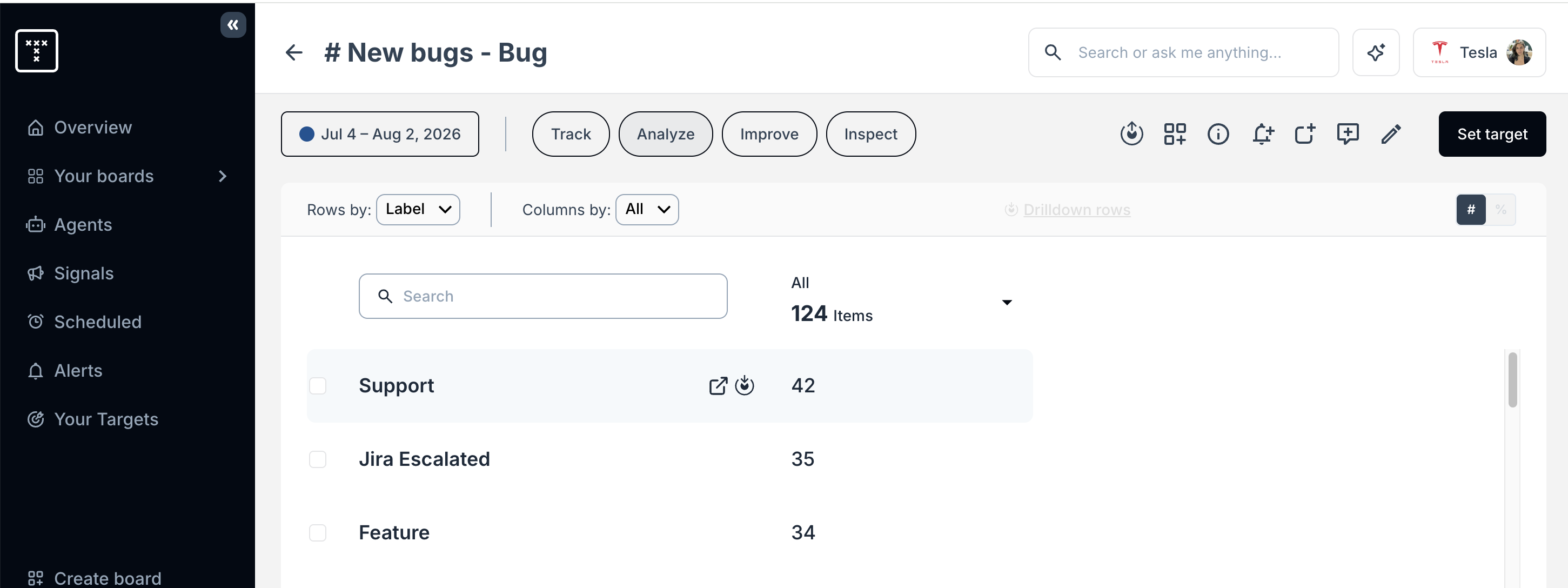
As you hover over any row in this tab, you will also have the option to link out - this will take you to your own data source for review (in the case shown above it would open a new tab in Jira show all 42 'Support' bugs), or to drill down for an even more specific data set to investigate more deeply.
From here, you can also select from any of the icons at the top of the page to save a new filtered metric, add it to a board etc.
The 'Improve' Tab
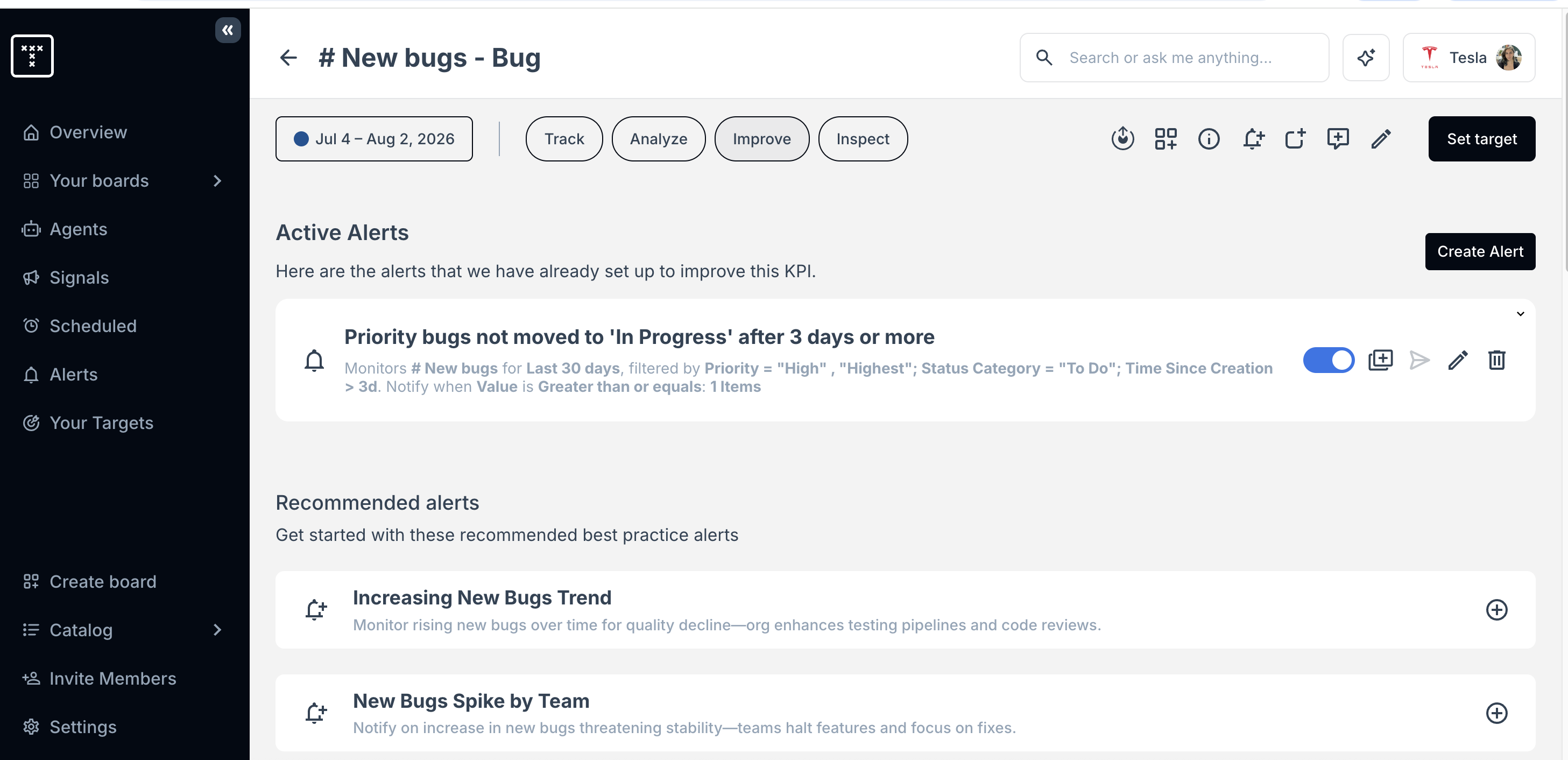
'Improve' gives you a place where you can view and set Alerts to stay on top of performance for the metric you are reviewing.
Additionally, you can create improvement or other Targets by clicking on the Set target button in the top right corner.
The 'Inspect' Tab
Use the Inspect tab to:
- See all the raw items going into the overall metric
- View properties like issue title, status, assignee, labels and more
- Create data tables with as many columns as you want or need to get a clear picture of what is driving the metric, without needing to create complicated reports.
- Identify outliers that skew your data.
- Validate why a specific item is included or excluded.
Treat the Inspect tab as a debugging zone to quickly answer questions about your metrics and data.
How did we do?
Embedding Boards or Metrics
Advanced Filters
