Creating Alerts
Use customized alerts to stay on top of critical KPIs and prevent issues from slipping through cracks.
Stay on top of your most critical KPIs and prevent issues from slipping through the cracks by using customized alerts to tell you and your teams about what matter most to you.
The Alerts menu can be accessed in two ways:
- From the Alerts tab in the main side menu
- From any Metric Page, by clicking the Improve tab
From either of these locations you can create alerts either from pre-made templates or from scratch.
Creating New Alerts
- Click on the Alerts tab in the side menu to open the Alerts interface.
- On this page you can see any alerts you have already set up as well as recommended alerts.
- Click +Create in the top left corner.
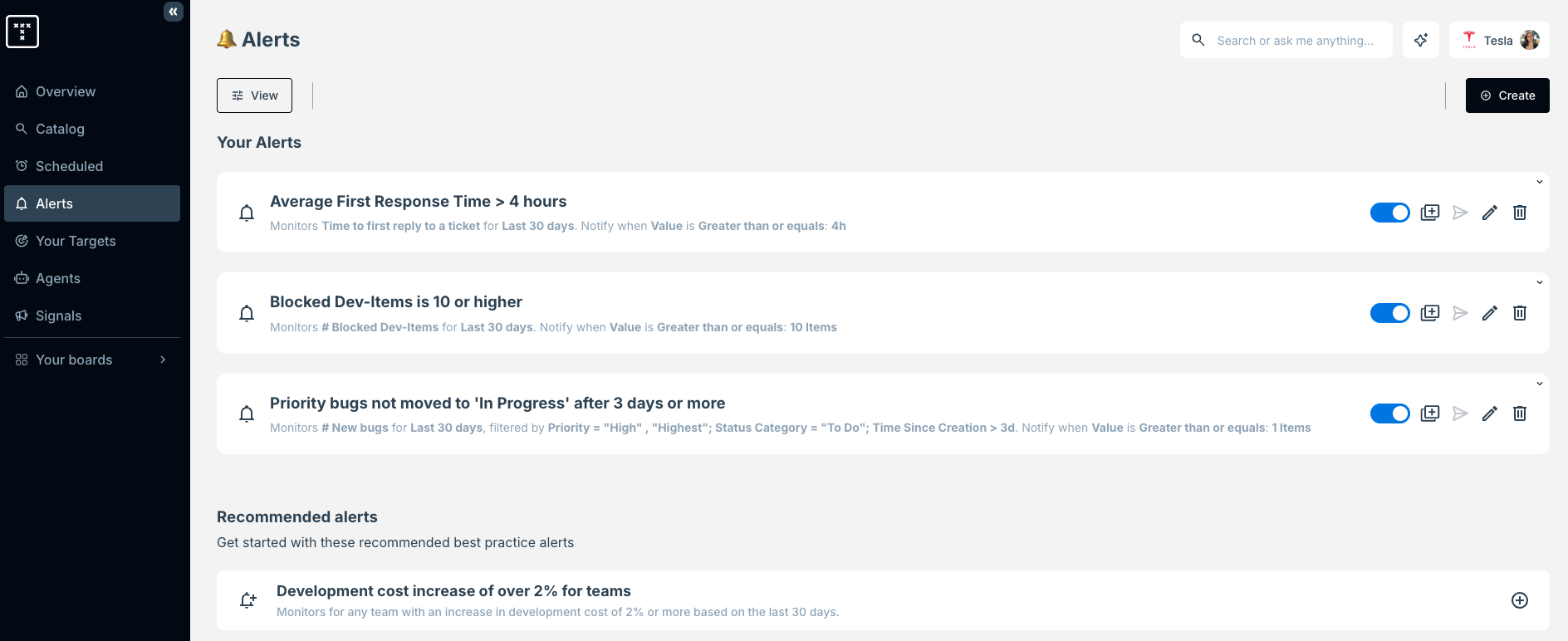
Account admins will be able to see all alerts configured for the account on this page and which user created them, whereas other users will only see their own alerts.
- Select the Metric you want to base your alerts on.
- OPTIONAL: Add any filters you want to further refine the data and create a more specific alert.
- eg: #Blocked Items that are also Critical Priority and assigned to a sprint instead of all Blocked Items.
- Choose a Trigger Type:
- Metric Value: Trigger an alert based on the raw value of the metric (eg: 5 or more Critical priority items are Blocked).
- Metric Breakdown Value: Trigger an alert based on the value per a grouping of your choice, such as a project or team (eg: #Closed Story Points for any team is below 50 points for the last 30 days).
- New Breakdown Value: Triggers when a new value appears in the breakdown (eg: a new critical bug has been created).
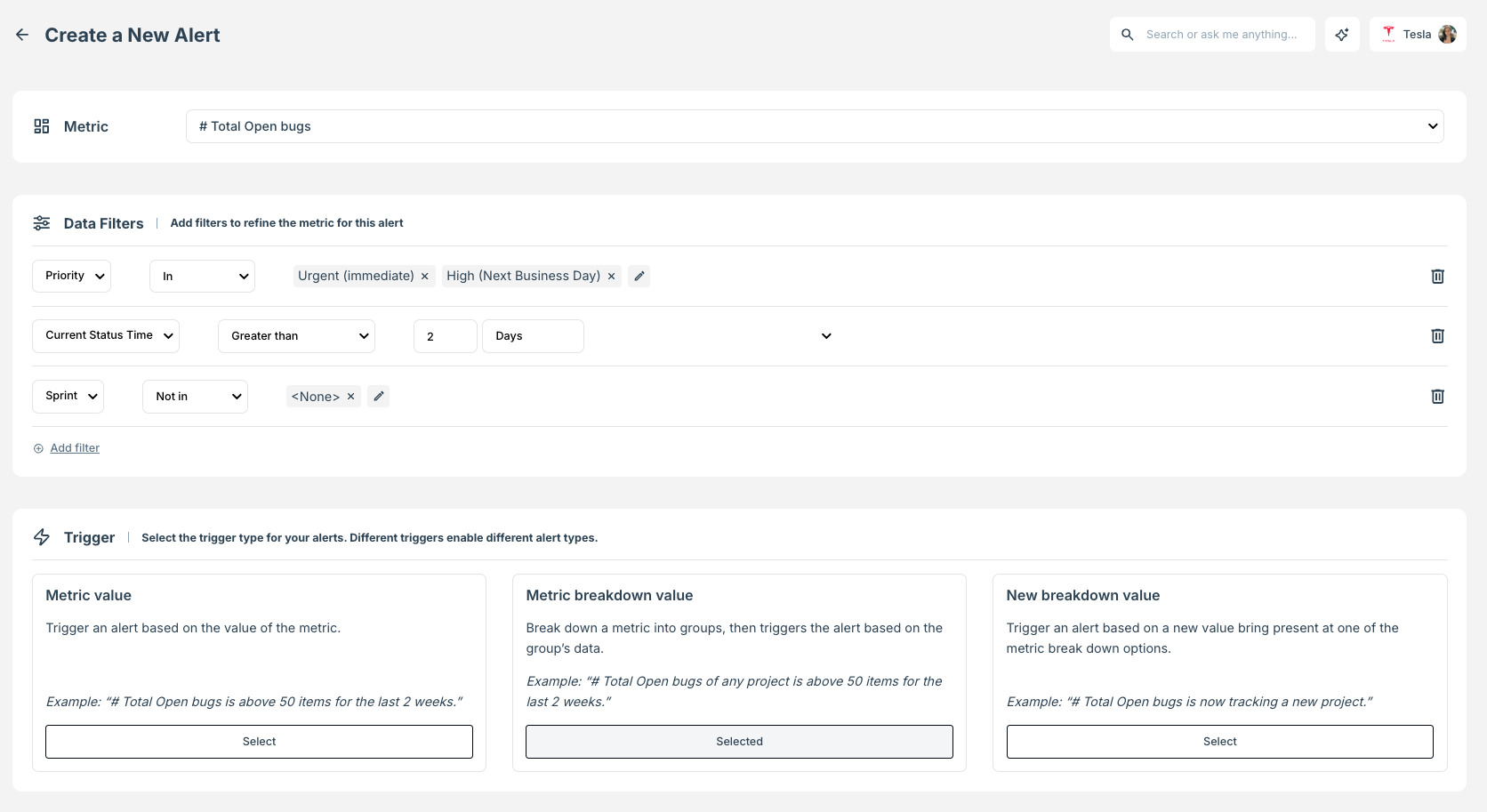
- If using either of the Breakdown Value triggers, select the relevant breakdown dimension (eg: Team or Project).
- Set the date range that you want the alert to consider data from.
- Choose the Trigger Condition to prompt the alert. This can be either a metric value or a percentage increase/decrease during the date range.
- Click Test alert to validate that setup is complete and returning the expected results.

- Add a name for your new alert and choose where to send it when triggered.
You have the option to send alerts via email to any user in your TargetBoard workspace, or via webhook to Slack/Teams channels or similar. - Click Create. You will now be taken back to the main Alerts interface and should see the new alert appear under Your Alerts.
Use webhooks to send alerts to Slack/Teams channels to create more visible alerts and accountability where needed.
How did we do?
Filtering Capabilities
Measuring AI Impact for Engineering
