Advanced Filters
Create complex filters to apply wherever you need them. Saved filters allow you to set up more advanced filter options and use them over and over again with a single click, rather than manually addin…
Create filters by using expressions
Advanced filters allow you to set up more complex and nuanced filter options by using the same sorts of expressions you would use for any standard query language.
For filters that are going to be useful to multiple users, or used repeatedly, create as a Saved Filter that can easily be applied anywhere you need without rebuilding the filter from scratch.
How are Advanced Filters different to Basic Filters?
- Basic Filters allow you to add conditions to folders, boards, cards or metrics to define the subset of data shown. They can use only the AND operator and are created by manually selecting each relevant dimension and the subset of data you want included.
- You can combine any number of these conditions and create a Saved Filter so that it only needs to be created once, rather than rebuilt every time the same conditions are required.
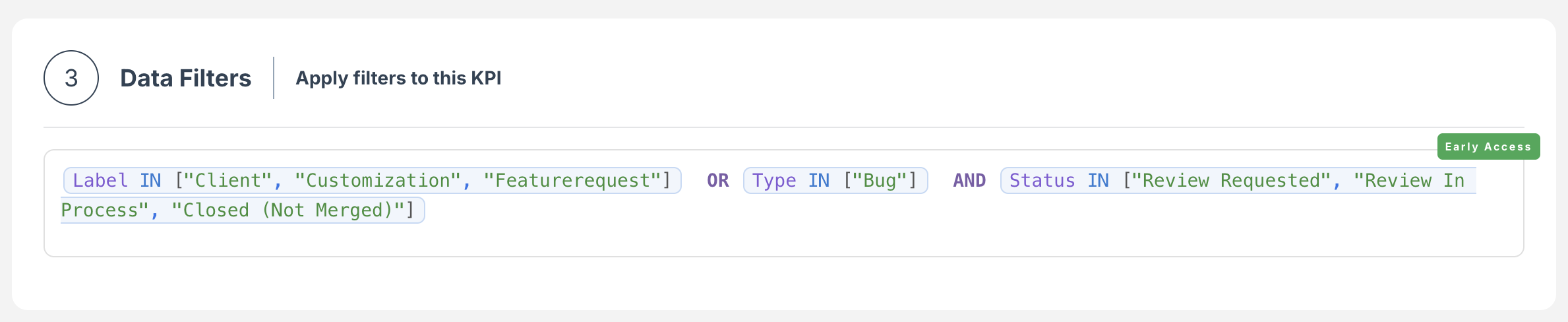
- Advanced Filters are created by writing expressions to define the data you want to see in much the same way as for any query language and allow you to set conditions with additional operators and a higher degree of complexity.
- The existing “AND” operator - An intersection filter that combines requirements to narrow results.
- Using the “OR” operator - A union filter that accepts alternatives to expand results.
- Adding the “NOT” (!) operator - An exclusion filter that removes specific data from results.
- Using Brackets - A precedence boundary that forces a specific execution order.
Creating a New Advanced Filter:
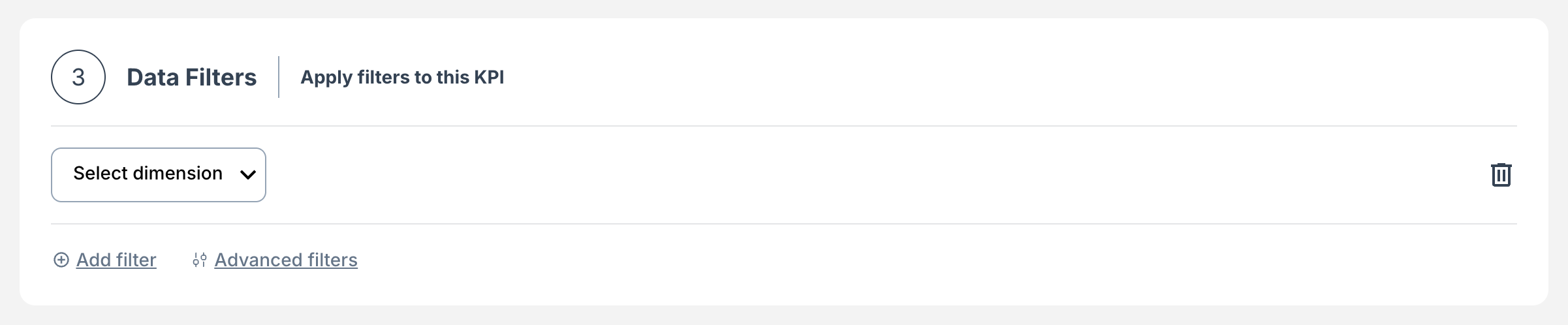
- Navigate to the filter interface based on where you intend to apply the filter (Metric, Card, Board etc.).
- Click Advanced filters.
For example, is how it appears on an Edit Metric page.
- Write your expression in the field provided and click Save.
Editing an Advanced Filter
- Find the filter you want to update click on the Edit icon.
- Make any changes you want.
- Click Save & Close.
How did we do?
Exploring Metrics
