Get Started with Your First Agent
This guide will help you set up your first Agent, understand where to find Signals and explain how to refine your Agent's findings over time with feedback. Setting Up a New Agent. Configuring your ag…
This guide will help you set up your first Agent, understand where to find Signals and explain how to refine your Agent's findings over time with feedback.
Setting Up a New Agent
Configuring your agents only takes a few minutes and delivers immediate insights into your work.
To see detailed best practice notes for Agents, see our guide.
Prerequisites & Limitations:
- Available Agents are based on user permissions. For example, an engineering leader will have access to Agents which analyze data from Jira and GitHub, but not to Agents linked to data in your HR systems.
- TargetBoard must be connected to the relevant data sources to be analyzed for the matching Agent to be available.
- Agents are an add-on feature and must be enabled in your TargetBoard account. Contact your Customer Success Manager or TargetBoard's sales team to enable agents in your account.
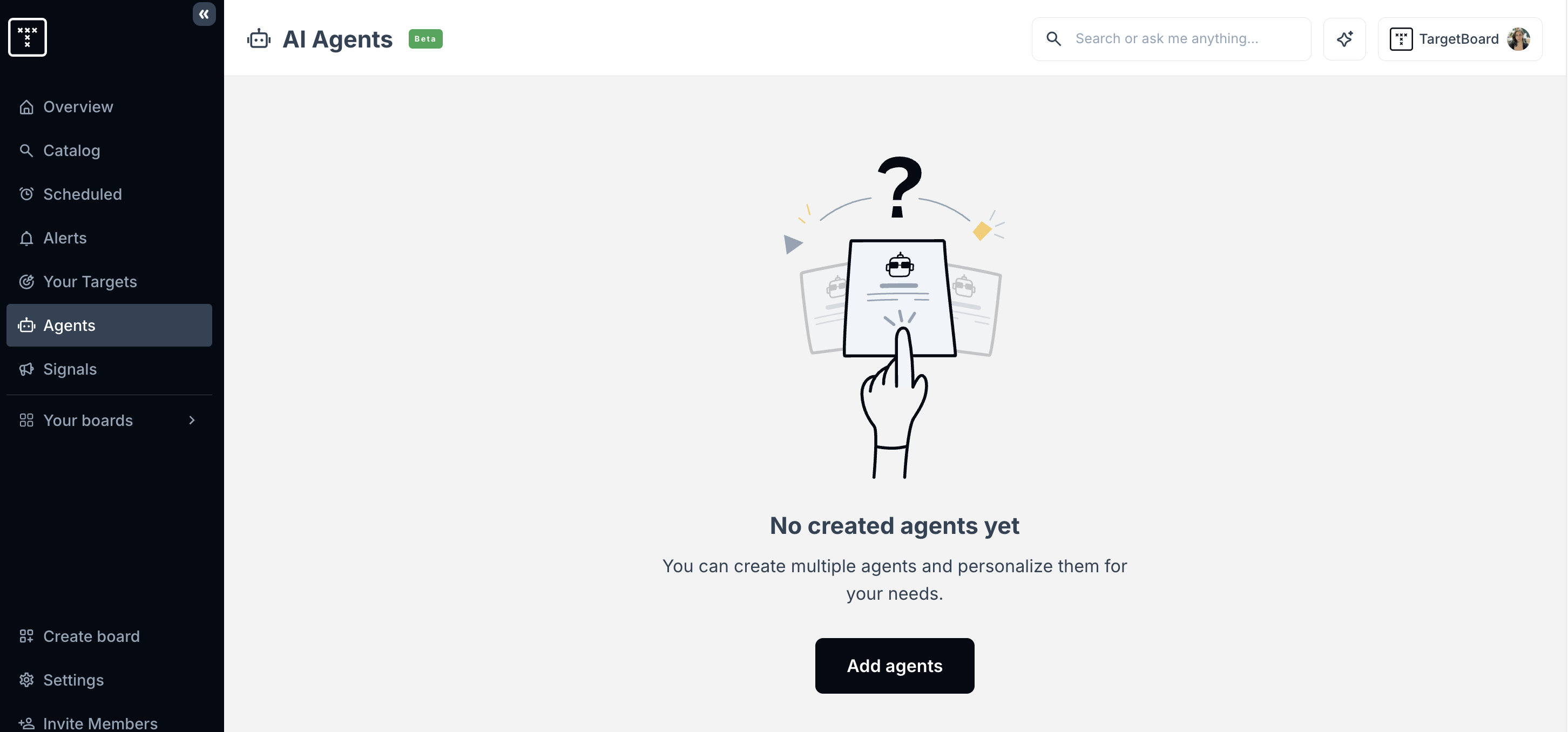
- Login to your account and click on the Agents tab in the side menu. Click Add Agents
- Click Create under the Agent you want to configure.
- Name your Agent and add any filters to the data you want the Agent to analyze. This will define the scope of the Agent's work (eg: choose a specific team, project, department or initiative you want to focus on).
- Choose the Signal types you want the Agent to look for (the list will differ for each type of Agent). Agents will consider all Signals unless they are disabled.
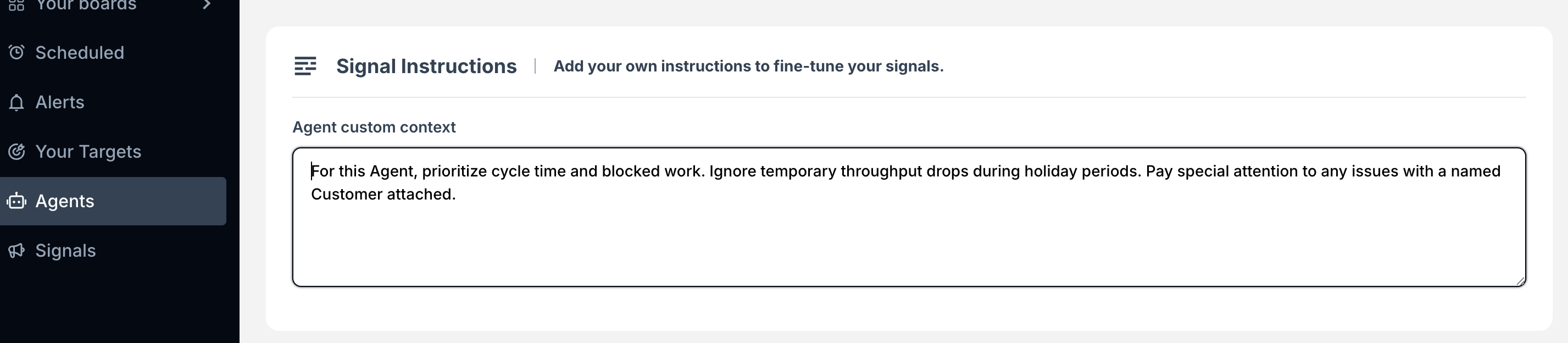
- (Optional) Add additional contextual information to be added to your Agent's prompt with Signal Instructions.
- Enter your (or another persons) email in the Send to field and click Create.
- Your Agent will now appear on the Agents page.
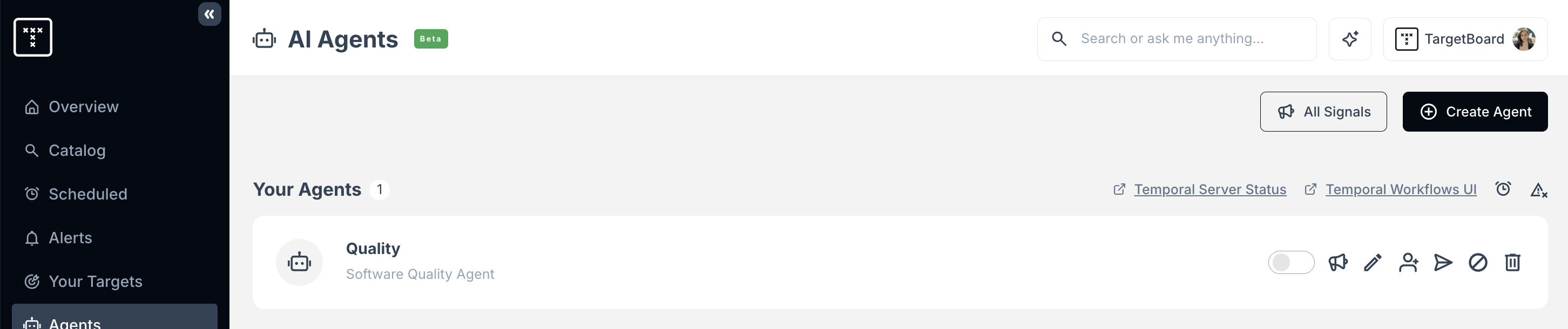
- From here, you can enable or disable your Agent, generate Signals for the first time, make changes to the scope or context of your Agent and share it with other members of your team.
Your Signals
Agents are designed to avoid spam or duplicates, and do not create a Signal for every small change detected.
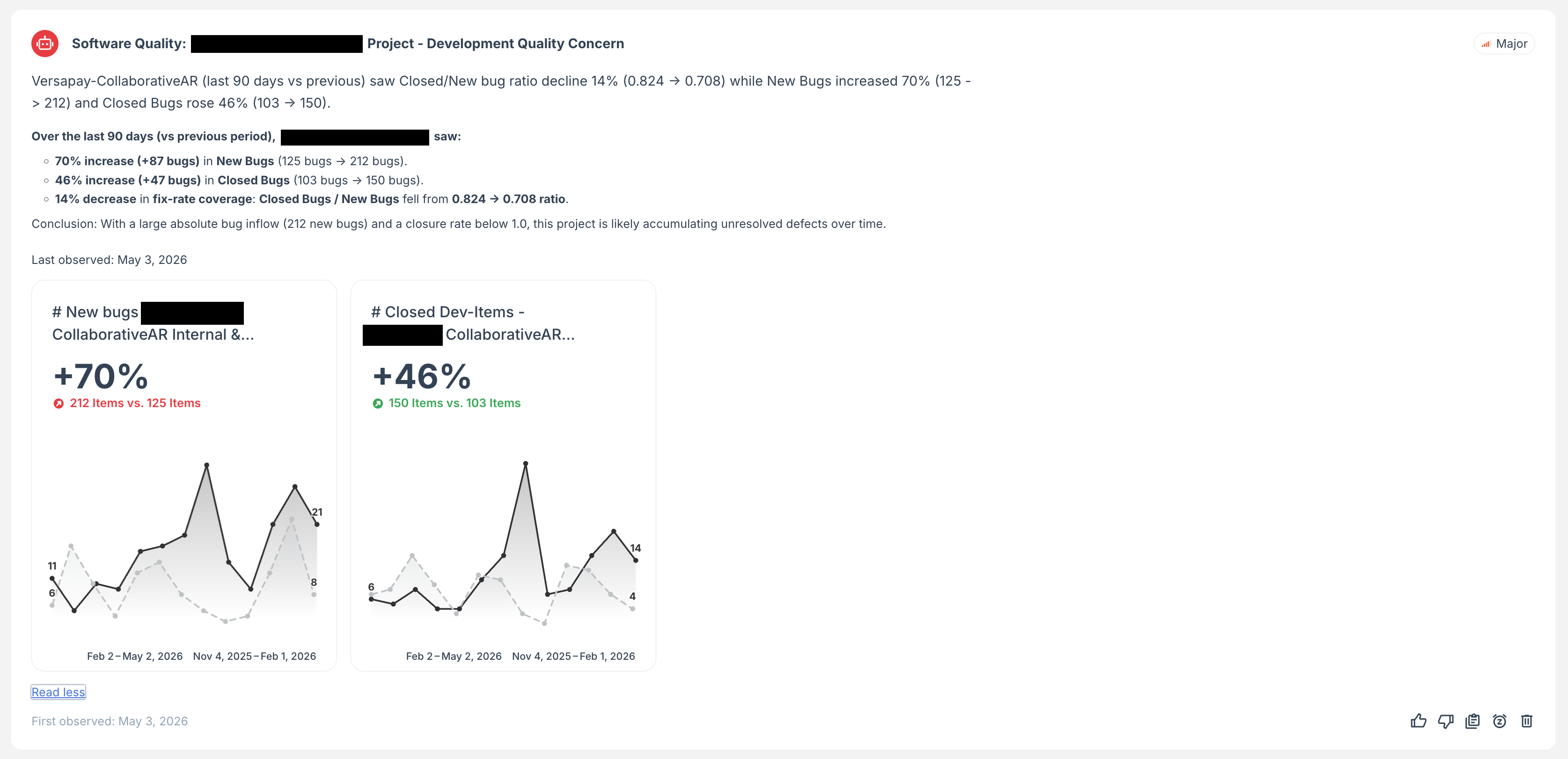
Instead, Signals look for meaningful, interesting and explainable changes to bring to your attention.
Your Signals can be viewed at any time in the Signals tab of your TargetBoard account.
Signal visibility works on two principals:
1. Signals are connected to Agent sharing settings. Agents can be set up as private or open to all account members.
2. Data access will be the same as your other TargetBoard user permissions. A user will only see Signals if they have access to view the data used to generate those Signals. This prevents users from gaining access to restricted information though Agent-generated insights.
Signal Frequency & Volume
- Agents run when they are created or edited.
- Subsequently, Agents run weekly and will update you of your Signals.
- Email digests are sent when high or critical priority Signals are found.
- Signals are deduped to avoid repeatedly surfacing the same issue. All Signals also note the first time that they were detected at the bottom of the relevant card.
- Note that a run may take up to 15 minutes depending on the amount of data being processed.
Feedback Mechanisms
Providing feedback on the Signals provided by your Agents teaches them what you find useful (or less useful) over time, to further refine the sorts of insights they will offer based on your data.
How to provide feedback
In the bottom right corner of each Signal card there are thumbs up and thumbs down icons.
Click on these to indicate if the insight provided was useful to you and, optionally, select from the drop-down list to explain why the Signal was or wasn't helpful. This feedback will be added to the context and prompts that govern your Agent.
How did we do?
What are TargetBoard Agents
Agents vs. Alerts
