Connecting to TargetBoard's MCP Server
This document outlines the required steps to create the TargetBoard MCP app in your company’s ChatGPT organization and make it accessible to users. Once set up correctly, you can then ask any questio…
This document outlines the required steps to create the TargetBoard MCP app in your company’s ChatGPT organization and make it accessible to users. Once set up correctly, you can then ask any question based on your TargetBoard data and get the results directly in your AI tool.
Must be performed by an admin in your ChatGPT/Claude account.
Setting up the App for your Organization
- Login to your ChatGPT account.
- Click on your workspace in the bottom left corner and select Settings.
- Navigate to Apps > Advanced Settings and enable Developer mode. Click Back.
- Click Create App and fill in the fields as follows:
- Name: TargetBoard MCP
- Description: (optional)MCP Server URL: https://mcp.targetboard.ai/mcp
- Authentication: OAuth
- Mark the I understand and want to continue checkbox and click Create.
- An application access request dialog box will appear. Click Allow Access.
- Navigate to Workspace Settings > Apps and select the Drafts tab. Find the TargetBoard MCP app in the list and click Publish.
- The app will now be available to all users in your workspace.
Claude Setup:
Setup for Claude is essentially the same process:Select Customize > Connectors > + > Add Custom Connector > enter the URL: https://mcp.targetboard.ai/mcp > Add.
Setup for Claude is essentially the same process:Select Customize > Connectors > + > Add Custom Connector > enter the URL: https://mcp.targetboard.ai/mcp > Add.
Installing the App for your User
Users must also have login credentials to TargetBoard.
- Note that the data you can access and ask questions about will be limited by your user permissions and available models - ie: if your user has access only to Engineering models, you will not be able to get answers related to Sales data.
- Note that the data you can access and ask questions about will be limited by your user permissions and available models - ie: if your user has access only to Engineering models, you will not be able to get answers related to Sales data.
- Login to your ChatGPT/Claude account.
- Navigate to Apps from the left side menu and search for TargetBoard MCP.
- Click on the app and then Connect.
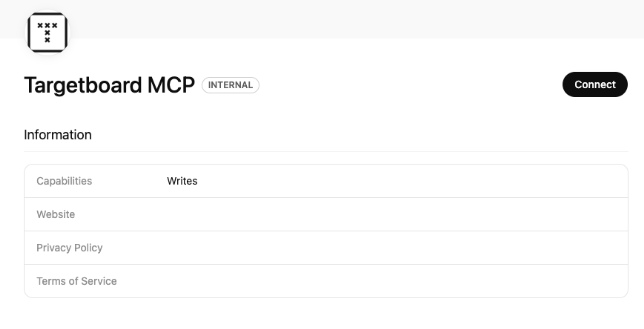
- A dialog box will appear explaining permissions and data policies. Click Continue to TargetBoard MCP followed by Allow Access on the next screen.
- You will be redirected to authorize the MCP connector with your TargetBoard account. Click Accept.
- The connection should now be completed. To start a chat, you can either click on Start Chat on the application page, or go to your chats and add the TargetBoard MCP app as shown below. From here, you can ask questions about your metrics and data.
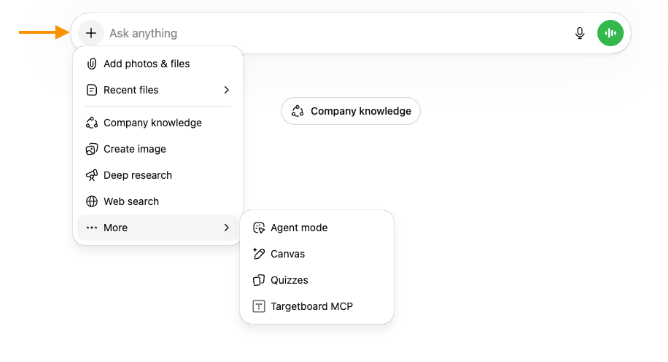
- Go ahead and ask any questions you want, the server will return the raw data and analysis directly to you.
How did we do?
Measuring AI Impact for Engineering
Tell Your Story with Text Cards and Annotations
