Board Permissions
Details on different board types and levels of access to different users based on creator preferences and system settings.
In TargetBoard, each board is designed to be shareable, collaborative, and secure. This guide explains how visibility and permissions work when creating and managing boards.
Sharing Options and Defaults
Whenever a new board is created, it is private by default and only visible to the creator and any administrators in your workspace. This allows you to work independently on creating what you need so that you can present it to your team and stakeholders when you're ready.
You can easily identify any private boards by the blue Private label next to the board's name.
Changing Board Permissions
- Click on the Share icon in the top-right of the board.
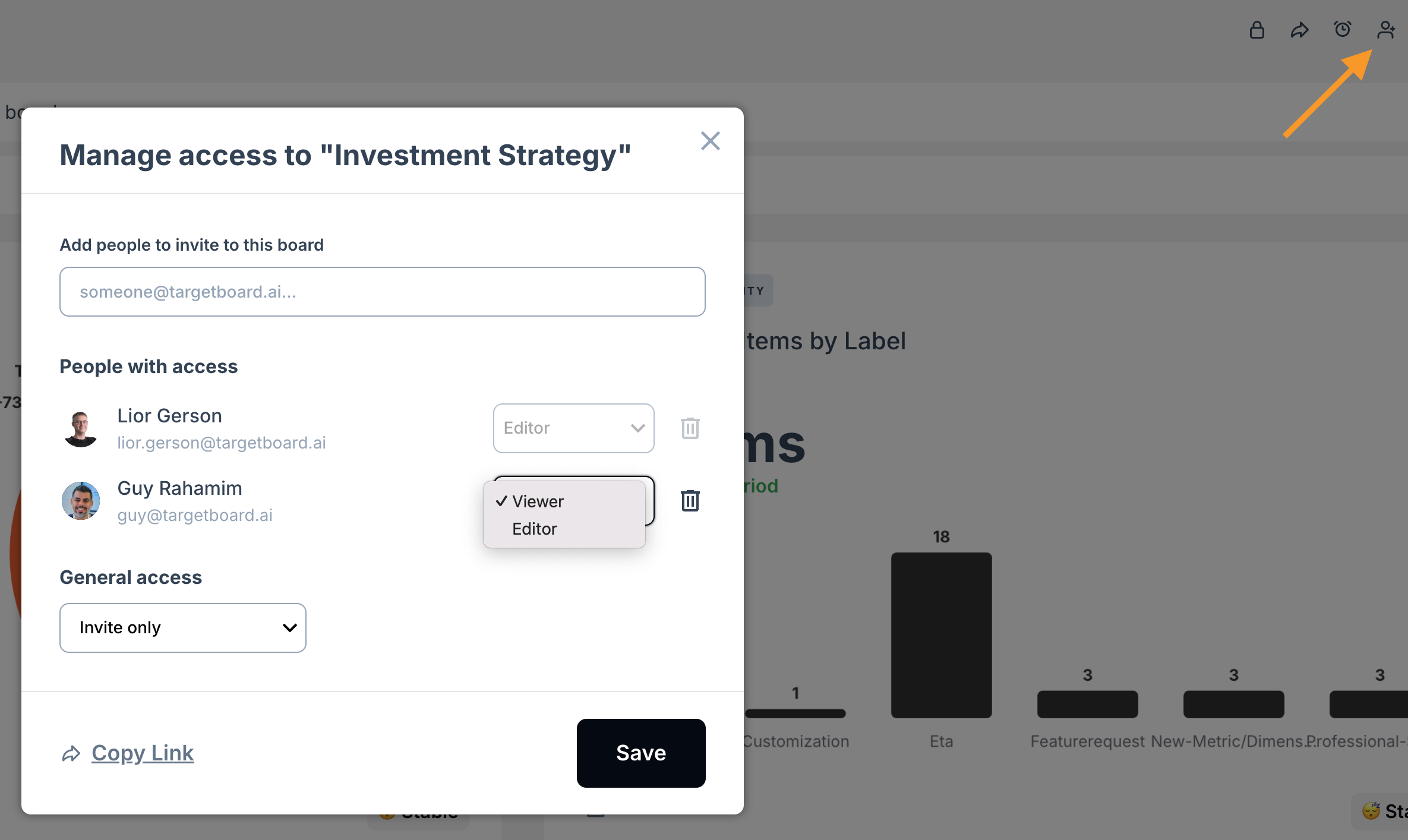
- This will open a popup from which you can invite collaborators from the users in your account.
- You can choose if you want your collaborators to have either Editor or Viewer permissions to your board.
- Editors can rearrange, add and remove cards.
- Viewers can see the board and apply board-level filters, but these are attached only to the individual user so they have a consistent experience of the board, and do not affect other users or the board itself.
- You can also update the General access from the default (Invite only), to Everyone in the account so that anyone can see your board and either use it directly or use it as a template a copy it for their own purposes.
- You can choose if you want your collaborators to have either Editor or Viewer permissions to your board.
What Others See
Other users will see the board title, layout and any cards (including card-level filters).
They will not see your personal filters or applied date range unless you either lock the board, or send them the shareable link generated by clicking Copy Link or the matching icon in the top right of the screen.
Using these links will duplicate your exact view for other users if you want them to see something specific.
Locked View
If you want to create a consistent view for everyone who accesses your board, so that the same filters and date range apply universally you can do this by clicking on the Lock icon in the top-right of the board.
- This option is only available to board editors.
- Once locked, the locked filters and date range will override any personal filters whenever a user opens the board. Users may then change their personal view while looking at the board, but it will reset to the locked view whenever they return to the board.
Best Practices
- Lock boards that are shared in recurring meetings to ensure consistent views
- Keep working drafts private until finalized
- Add editors when multiple people maintain the same board
- Use restricted access for sensitive or leadership-level boards
How did we do?
Creating & Using Saved Filters
Presenting Folders
