Presenting Folders
TargetBoard's Present Folder feature showcases KPIs in a clean format for QBRs and leadership reviews, letting you step through boards seamlessly while actively engaging with data.
TargetBoard's Present Folder feature is useful for showcasing KPIs in a clean, focused format and is ideal for QBRs, leadership reviews, or team check-ins.
Instead of screen sharing dashboards one by one, use Present Mode to step through multiple boards seamlessly.
When to Use This
- To run live QBRs or status updates across departments.
- To share a curated performance story across teams or stakeholders.
- To allow executives or upper-level management to review performance without the need to navigate multiple views.
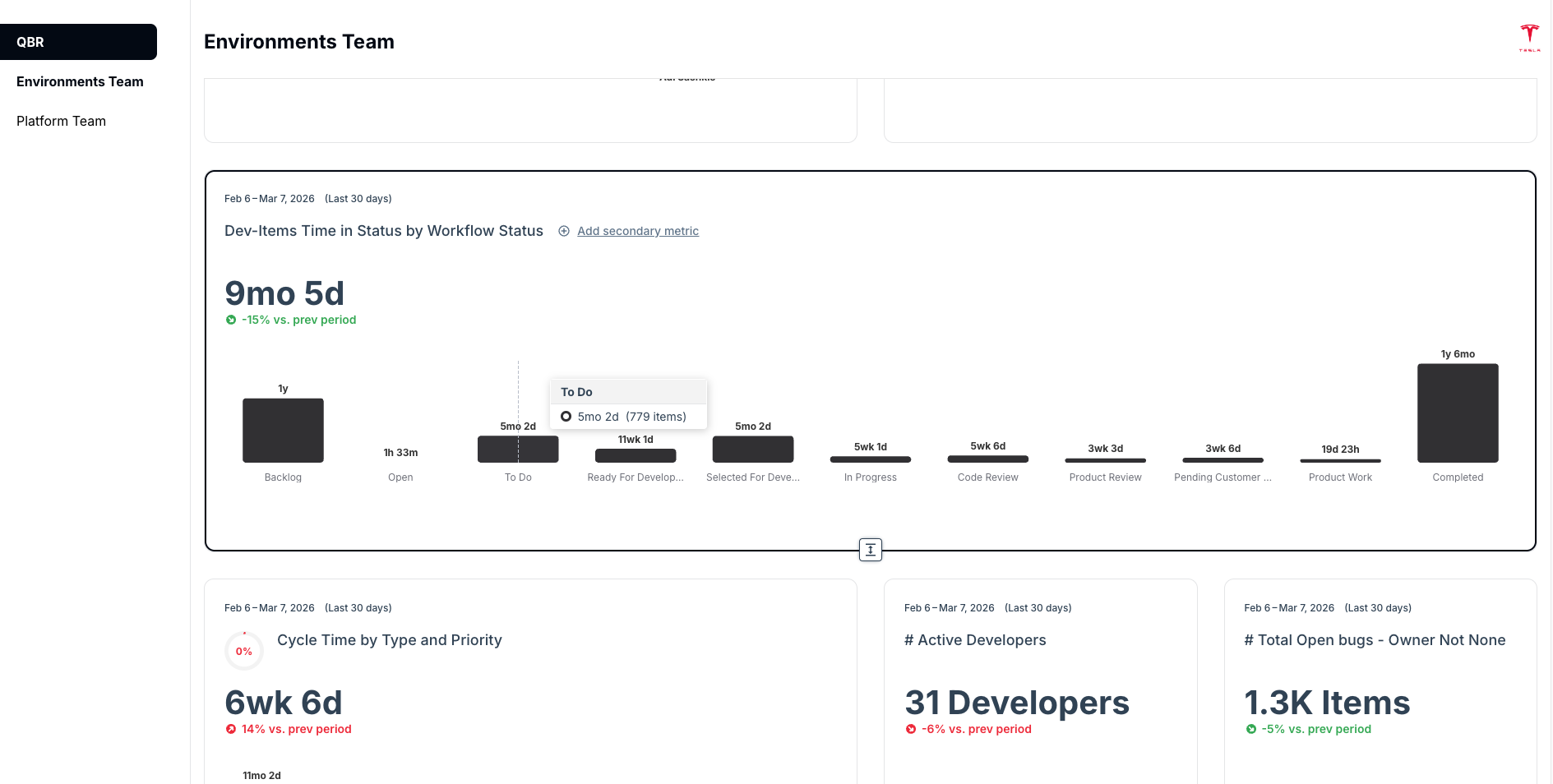
Unlike using standard slide decks or screenshots for your presentation, you can actively engage with your data while using Present Mode in TargetBoard in the same ways that you would on the board itself such as hovering over specific visualizations to see additional information or clicking on them for detailed drill-downs to address any questions.
Add filters to your folder to show a consistent data set across your presentation without needing to configure each board separately.
How To:
- Hover over Your Boards in the side menu and click on the Folder icon in the top-right of board selection menu when it appears. Select Create Folder.
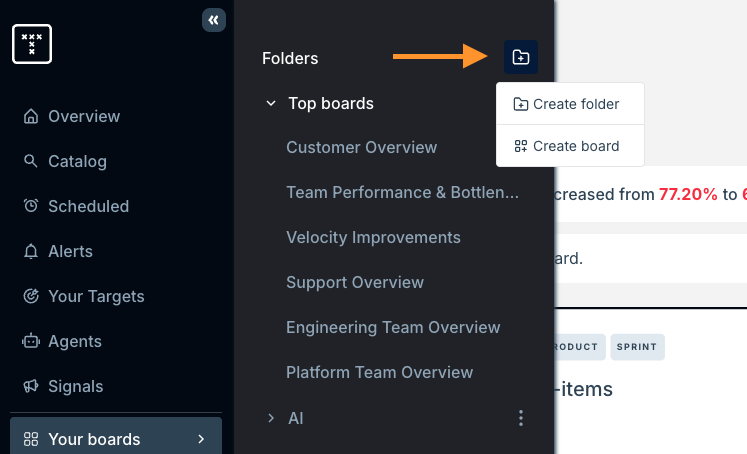
- Name your folder and (optionally) add a description where prompted.
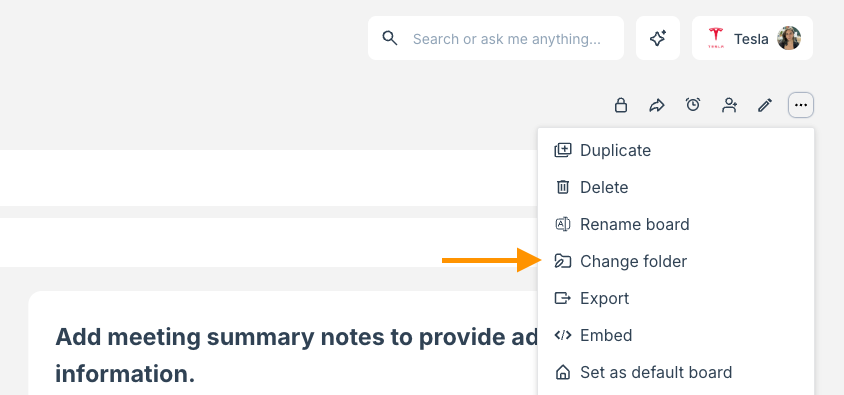
- Either create new boards in the folder, or add existing boards by going to the boards you want, by clicking on the three dots in the top-right of the page and selecting Change Folder.
- Enter Presentation Mode by clicking on the three dots next to your folder in the side menu and choosing Present Folder. This will open a clean, presentation-ready view with all the boards inside.
Sharing and Access
- The presentation uses a shareable URL that is accessible to all TargetBoard users within your account.
How did we do?
Board Permissions
Creating & Editing Boards
